2026-07-27 · vim, plainly · part 3
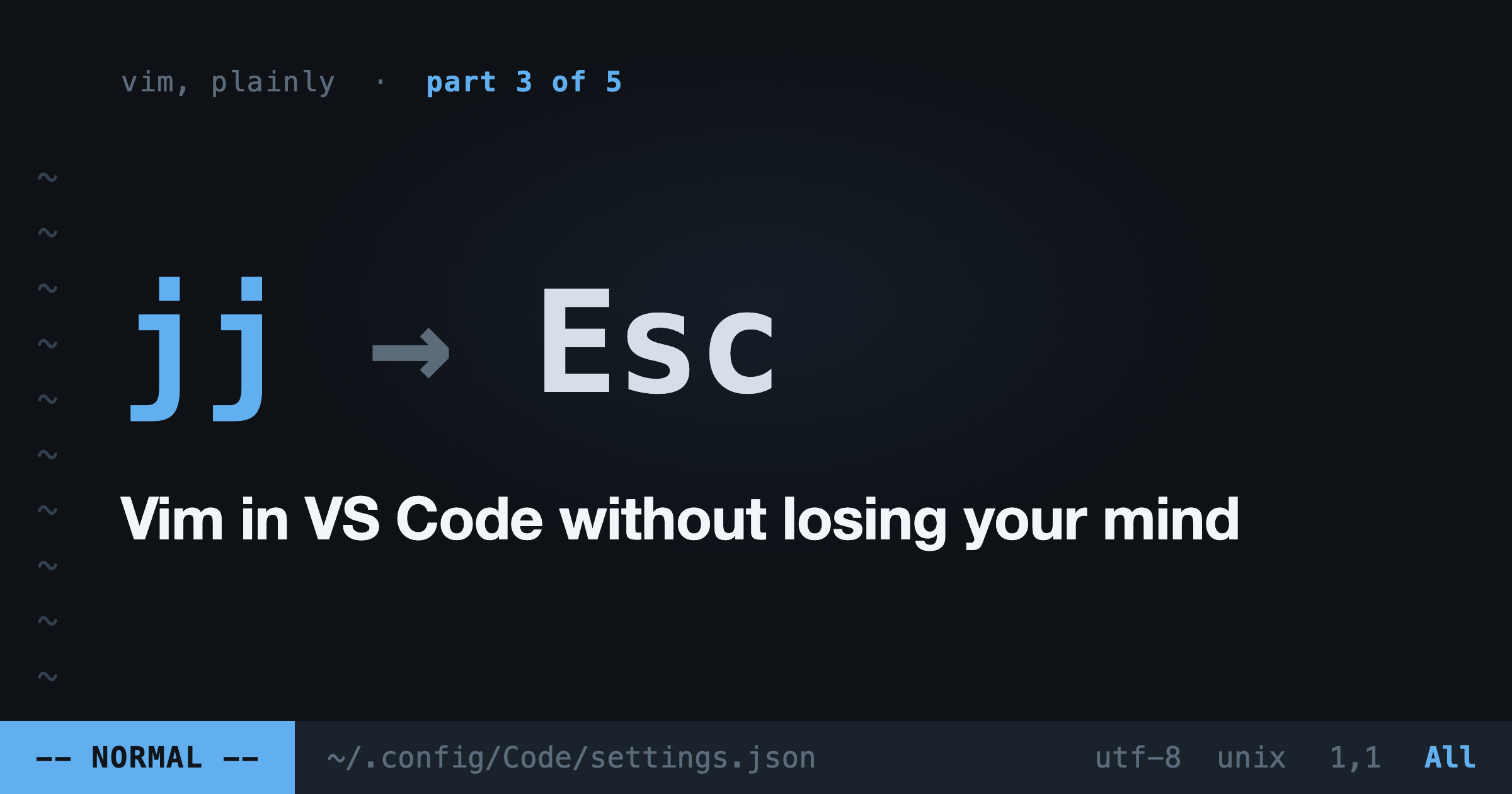
Vim in VS Code without losing your mind
VSCodeVim vs vscode-neovim, the settings that make it livable, and the macOS key-repeat fix everyone misses.
On this page
You don't have to choose between Vim and VS Code. This is the part most "switch to Vim" posts skip, and it's why most people never start. Keep your debugger, your extensions, your remote containers. Add the grammar from part 1 on top.
Two extensions do this, and they work in completely different ways. Pick based on what you want.
The two options
VSCodeVim (vscodevim.vim) is an emulator. It reimplements Vim's behavior in TypeScript inside VS Code. No Vim installed, no config files, install and go. It covers the whole core grammar: verbs, motions, text objects, registers, macros, marks. It even bundles emulations of popular plugins like vim-surround.
vscode-neovim (asvetliakov.vscode-neovim) is not an emulator. It runs a real Neovim process in the background and uses it as the engine for normal mode, while insert mode stays native VS Code. Your actual init.lua loads (minus UI plugins). Real macros, real :g, real Vim regex.
My honest recommendation: start with VSCodeVim. It's the gentler on-ramp and covers 95% of what a first-year Vim user does. Move to vscode-neovim later if you build a Neovim config you want everywhere, or when you hit the emulator's edges.
The settings that make VSCodeVim livable
Paste this into settings.json and adjust:
{
  "vim.useSystemClipboard": true,
  "vim.hlsearch": true,
  "vim.incsearch": true,
  "vim.leader": "<space>",
  "vim.insertModeKeyBindings": [
    { "before": ["j", "j"], "after": ["<Esc>"] }
  ],
  "vim.handleKeys": {
    "<C-p>": false,
    "<C-b>": false
  },
  "editor.lineNumbers": "relative"
}
What each line buys you:
useSystemClipboardmakesyandptalk to the OS clipboard. Without it, yanking and pasting between VS Code and your browser is a two-clipboard mess.jjto escape saves your left pinky. Type it fast in insert mode and you're back in normal mode.handleKeysgives keys back to VS Code. Here,Ctrl-pstays quick-open andCtrl-bstill toggles the sidebar. Whenever a VS Code shortcut mysteriously dies, this is where you fix it.- Relative line numbers make counts real: you can see the line is 7 down, so
d7jisn't math, it's reading.
The macOS gotcha that gets everyone
On macOS, holding j pops the accent picker instead of repeating the key, which kills held-down navigation. One-time fix in a terminal:
defaults write com.microsoft.VSCode ApplePressAndHoldEnabled -bool falseRestart VS Code after. If you skip this, Vim mode will feel broken and you'll blame the wrong thing.
What will annoy you (so it doesn't surprise you)
Honesty section. VSCodeVim is an emulation, and the seams show in three places.
Undo can feel different. VS Code and the extension both have opinions about what one "change" is, so u sometimes takes a bigger or smaller step than muscle memory expects.
Macros are slower and occasionally wrong on complex sequences. For a heavy qa...q / @a workflow across hundreds of lines, a real terminal Vim (or vscode-neovim) does it properly.
Ex commands are a subset. :%s/old/new/g works fine. The long tail of :g, ranges, and regex quirks follows VS Code's engine, not Vim's.
None of these are dealbreakers for learning the language. They're the reasons power users eventually graduate to vscode-neovim.
One week adoption plan
- Install VSCodeVim, add the settings above, fix the macOS key repeat.
- Days 1 and 2: navigation only.
hjkl,w,b,gg,G. Resist the mouse, don't force it. - Days 3 and 4: the verbs.
d,c,ywith motions. Start reading edits as sentences. - Days 5 to 7: text objects (
ci",di(,dap) and the dot command.
If by day 7 it isn't clicking, disable the extension and revisit in a month. No shame in it. But most people who make it to text objects don't go back.
Next: the browser is text too. Vimium gives it the same keys.